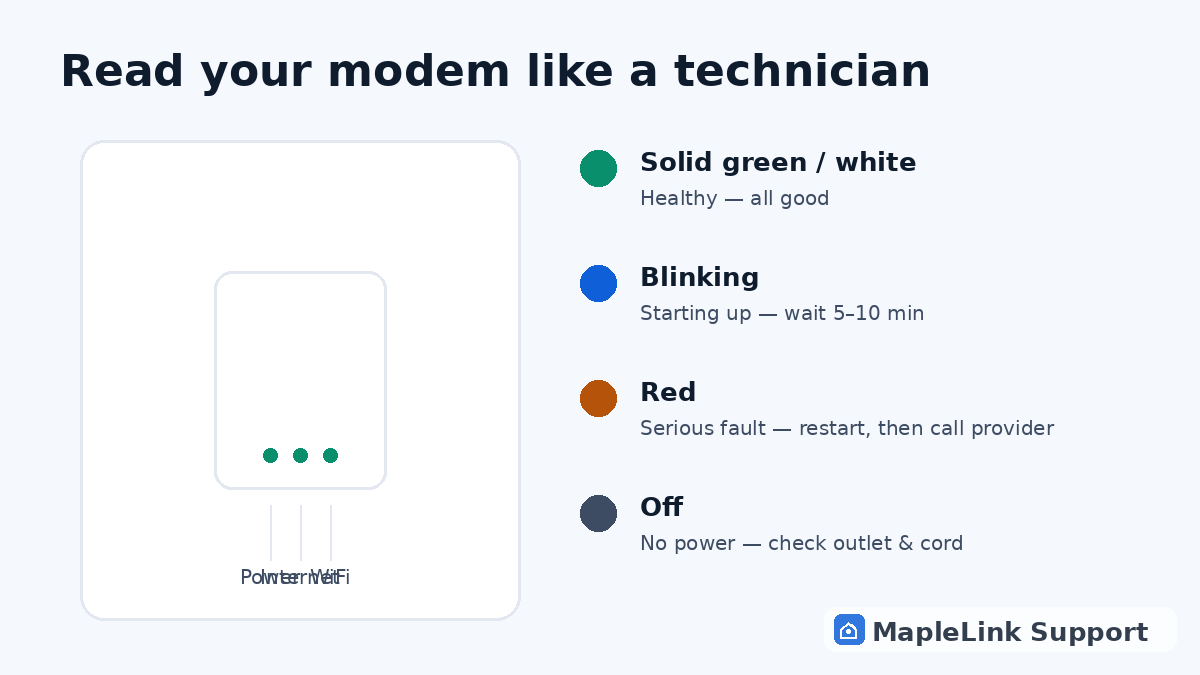
Which box do you have?
TELUS has shipped a few different boxes over the years — a tall white tower (the current WiFi Hub), and older flat white or black units. The lights are in different spots but mean the same things.
The universal language
Whatever the model: solid = happy, blinking = working on it, red = trouble, off = no power or that feature is off. One row of lights covers power, internet connection, and WiFi.
Blinking is normal — for a while
Every restart makes the internet light blink for a few minutes while the box reconnects. Blinking only becomes a problem when it passes the 10-minute mark.
Fine lights, broken internet
If every light is solid green but nothing loads on any device, the box is healthy and the problem is WiFi or the provider's network beyond your wall. Time for the outage check or a hands-on diagnosis.
| Light | What it means | What to do |
|---|---|---|
| Solid green / white | All good — connected and healthy | Nothing. If internet still fails, the issue is WiFi or a device |
| Blinking green | Starting up or reconnecting | Wait 5 minutes — it usually settles on its own |
| Blinking for 10+ minutes | Can't reach your provider's network | Proper restart, then check for an outage |
| Red | Serious fault — no connection | Restart once. Still red? Call the provider — it's on their side or the box is failing |
| No lights at all | No power to the box | Check the outlet and power cord; try a different wall socket |
| WiFi light off | Wireless radio off or failed | Check the WiFi on/off button on the box; if it's on but the light's dead, the box may need replacing |
Still stuck? We fix it in your home — same day.
Flat $139 · diagnosis + repair included · evening & weekend slots.
If we can't fix it, the visit is free.